




 Applies to: SL100 Voice Recorder Pen →
What scheduled recording does
Scheduled recording lets you set a daily start time on the SL100 voice recorder pen. The pen starts recording at that time every day and stops after the duration you choose. You configure it once on a Mac or Windows computer using the free RecorderGear setup software: turn Schedule Mode on, set a start time in 24-hour format, choose a duration of 1, 2, 5, 10, or 20 hours, and disconnect the pen.
The feature suits recurring sessions you attend: a daily team briefing at 9am, a lecture that starts at 10am, a study group that meets at the same time each day. Once the schedule is set, you do not need to start the pen by hand before each session. Each scheduled session is saved as a single recording file, ready when you connect the pen to your computer.

Key Takeaways
- The SL100 starts recording at one daily start time and stops after 1, 2, 5, 10, or 20 hours.
- The schedule is set in the setup software on a Mac or Windows computer. There is no way to set it from the pen itself.
- Scheduled sessions record in XHQ or HQ. PCM and voice activation are not available while a schedule is active.
- A schedule will not start if the pen is plugged in, if its switch is not on STOP, or if its date and time are wrong.
On the RecorderGear SL100 voice recorder pen, scheduled recording starts a recording at the same time every day for a set duration, configured once in the RecorderGear setup software on a Mac or Windows computer, so a recurring class or meeting you attend is captured hands-free.
How to Set Up Scheduled Recording
Setup takes a few minutes on a Mac or Windows computer. On Windows, use the Time Setup program stored on the pen; on a Mac, download RecorderGear Setup from our Manuals & Software page. It is the same program you use for recording quality, voice activation and microphone sensitivity.
- Connect to your computer: Plug the SL100 into a USB port. It appears as a removable drive.
- Open the setup software: On Windows, open the preloaded program named "TIME SETUP" on the pen's drive. On a Mac, open RecorderGear Setup.
- Set your schedule: Turn Schedule Mode on, enter a daily Start Time in 24-hour format, and choose a Duration of 1, 2, 5, 10, or 20 hours.
- Save and unplug: Make sure the recording switch is on STOP, click START in the program, then unplug the pen.
Why Use Scheduled Recording
- Hands-free start: Set the schedule once, and a daily meeting or lecture you attend is captured without starting the pen by hand.
- Improved focus: Concentrate on the meeting or lecture instead of operating your recording device.
- Organized files: Each scheduled session is saved as a single file, so a week of sessions is easy to find and review.
Practical Use Cases for the SL100
For Professionals and Business Owners
Scheduled recording suits daily team briefings, recurring client meetings and weekly project meetings, where everyone at the table knows the session is recorded. You keep an accurate record for reference and review without adding another task to your morning.
For Students and Academics
For a class that meets at the same time every day, set the start time a few minutes before the lecture so recording is already running when it begins. Over a term, that builds an audio library for review and study. Ask your instructor before you record a class.
For Personal Use
Use it for an audio journal, a daily practice session, or a study group that meets at the same time each day.
Tips for Best Results
- Recording quality: Scheduled sessions record in XHQ (128 kbps) or HQ (64 kbps), and voice activation is disabled while a schedule is active. PCM is not available: it is uncompressed audio, which the Library of Congress describes in its linear PCM format description, while MP3 is compressed.
- Power: Unplug the pen from any computer or charger. Scheduled recording will not start or continue while the pen is charging or connected for file transfer.
- Date and time: The schedule will not start if the pen's date and time are wrong. If the battery drains completely, the clock resets, so recharge the pen and run the setup software again.
- Check your first session: The indicator does not blink when a scheduled session begins. Briefly press the Mode button on the included remote, and the LED shows the recording status for 5 seconds.
- Stopping early: To end a scheduled session before its duration is up, slide the recording switch from STOP to REC and back to STOP.
Responsible use. Recording laws vary by state. Let people know when you are recording, and get consent where the law requires it. Read our guide to consent laws.
Reliable Recording, Simplified
Scheduled recording turns the SL100 into a recorder that starts on its own for the sessions you attend every day. Set it once on a Mac or Windows computer, keep the pen unplugged and its clock correct, and each session arrives as its own file for review.
Discover more about the SL100 Voice Recorder Pen and its full feature set, or read our SL100 settings guide for voice activation and quality modes.
Frequently Asked Questions
Can I set the SL100 schedule from the pen itself?
No. Schedule Mode, start time and duration are set only in the setup software on a Mac or Windows computer.
Can the SL100 record on a weekly schedule?
No. The schedule uses one daily start time and one duration. For sessions on other days, start the recording by hand with the recording switch.
Why didn't my scheduled recording start?
The usual causes are a pen that was still plugged in or charging, a recording switch not set to STOP, or a date and time that reset after the battery drained. Fix the cause and run the setup software again.
Can I use PCM or voice activation with a schedule?
No. Scheduled sessions record in XHQ or HQ, and voice activation is disabled while scheduled recording is active.
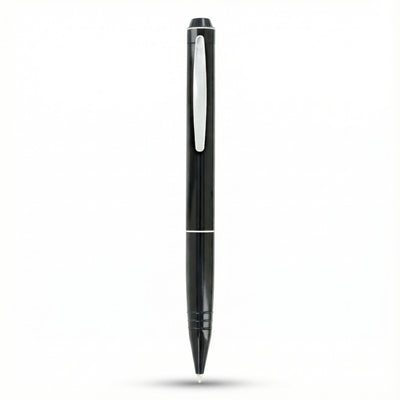
 SL100
 FD50