



Key Takeaways
- Since iOS 18.1, you can record a call on an iPhone by tapping More, then Call Recording. Both people hear "This call will be recorded."
- Built-in recordings save to a Call Recordings folder in the Notes app, with a transcript in supported languages.
- The built-in recorder covers phone calls and FaceTime audio with one other person. It is not offered in the European Union and 18 other countries.
- Call recording apps merge your call with a recording line, which needs carrier 3-way calling and usually a subscription.
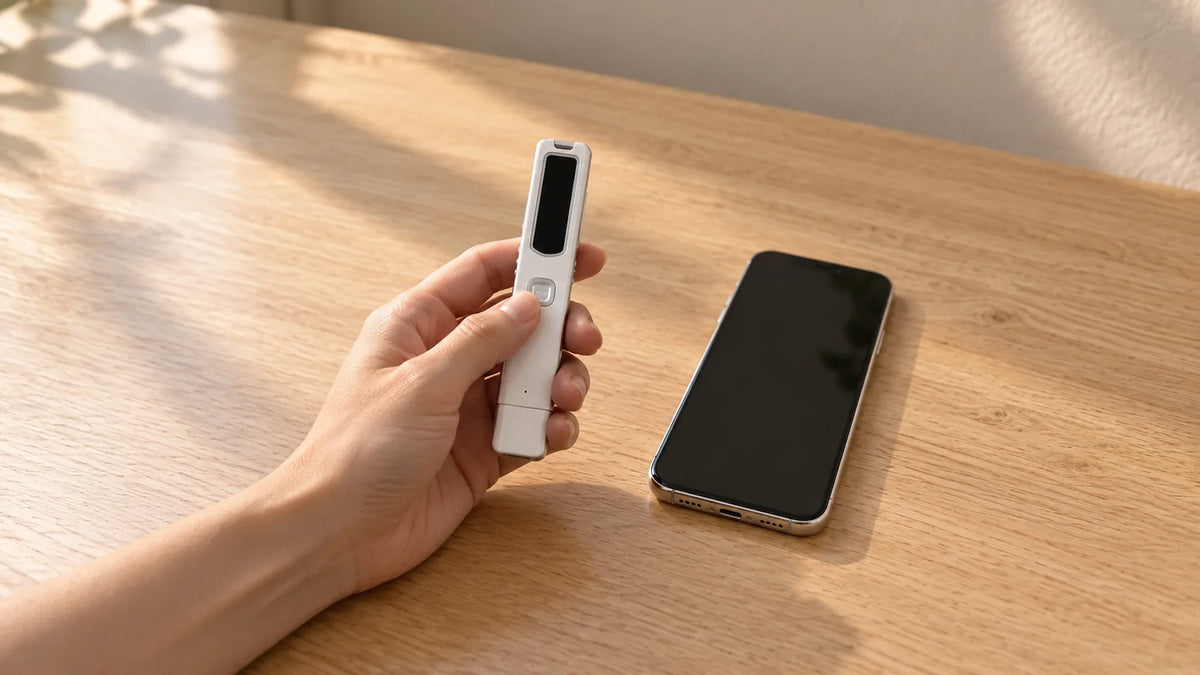
- A Bluetooth call recorder, like our PR200, records both sides on the device itself, with no app and no region limits.
By the end of this guide you will know which of the three ways to record a phone call on an iPhone fits your calls, and how to set each one up. Most people only need Apple's built-in recorder. If your iPhone does not show the button, or you want MP3 files on a device you control, a Bluetooth recorder such as the PR200 cell phone call recorder is the simplest alternative. Or compare all our phone recorders.
Which iPhone Call Recording Method Fits You
The right method depends on where you live, which calls you make, and where you want the files to end up.
| Built-in iOS recorder | Merge-call app | Bluetooth call recorder (PR200) | |
|---|---|---|---|
| Cost | Free | Weekly or yearly subscription | One-time device |
| Region limits | Not in the EU and 18 other countries | Needs carrier 3-way calling | None |
| Steps per call | Tap More, then Call Recording | Hold, dial the recording line, merge | Answer on the recorder |
| Call types | Phone and FaceTime audio, one other person | Cellular calls | Any call your phone sends to Bluetooth |
| Where files live | Notes app on your iPhone | The app's servers | On the recorder, as MP3 files |
| Transcript | Yes, in 15 supported locales | Often a paid add-on | No |
| Works on Android | No | No | Yes |
Built-in suits occasional one-to-one calls in a supported country. An app suits people who want cloud copies. A Bluetooth recorder suits people who want one purchase, no region limits, and files on a device they own.
What You Need
Check these before your next important call.
- Built-in: an iPhone on iOS 18.1 or later, in a supported country. Transcripts need a supported language, and call summaries need an iPhone 15 Pro or later.
- App: a carrier plan with 3-way calling, the app itself, and usually a subscription.
- Bluetooth recorder: a charged PR200 and about two minutes to pair it with your iPhone once.
Step 1: Record a Call With the Built-In iPhone Recorder
Tap More, then Call Recording, while the call is active. According to Apple's iPhone User Guide, both people then hear an audio notice. In Apple's own demo, the prompt says "This call will be recorded."
- Start or answer a phone call or FaceTime audio call.
- Tap More (the three dots), then tap Call Recording.
- Wait for the announcement, then carry on with the call.
- Tap the stop button, or just hang up, to end the recording.
On iOS 26 and later, the control lives inside More. Older tutorials still show a top-left button.
Step 2: Find Your Recording and Transcript in Notes
Your iPhone saves every call recording to a Call Recordings folder in the Notes app. Open Notes, tap that folder, and pick the call.
Each note holds the audio and, in supported languages, a transcript that labels each speaker. You can search it, copy text, or share the audio file. Apple's own advice is to "verify the accuracy of a transcription before relying on it," so check names and numbers against the audio before you act on them.
RecorderGear's short answer: an iPhone on iOS 18.1 or later records calls natively through More, then Call Recording, and saves them to Notes. The PR200 Bluetooth call recorder records both sides on the device instead, with no app and no region limit.
Don't See the Record Button? Six Reasons
A missing button is the most common complaint, and it usually has a simple cause.
- Your region is not supported. Apple lists the European Union and 18 other countries, including Turkey, Saudi Arabia, South Africa and the UAE, where the feature is not offered.
- You are looking in the old spot. Since iOS 26 the control sits under More, not in the top-left corner.
- The setting is off. Go to Settings, then Apps, then Phone, and turn on Audio Call Recording.
- Your iOS is out of date. Update to iOS 18.1 or later in Settings, then General, then Software Update.
- It is a group call. Apple scopes the feature to a call with one other person, so merged or conference calls may not offer it.
- It is an app call. WhatsApp, Signal, Zoom and other internet calling apps do not show a record button.
If you get a recording but no transcript, your language may not be supported. Apple records in 32 languages but transcribes a much shorter list, according to its feature availability page.
How Call Recording Apps Work on iPhone
Third-party apps cannot capture iPhone call audio directly, so they add a recording line to your call. The TapeACall App Store listing explains the process: the app puts your call on hold, dials its recording line, and you tap merge to create a 3-way call.
It works, with three trade-offs:
- Extra steps on every call. You hold, dial and merge each time.
- Carrier support. TapeACall states it needs a carrier that supports 3-way calling, and names US prepaid carriers that do not. Apple also notes that conference calling depends on your carrier.
- Subscription pricing. On the App Store today, TapeACall's weekly plans run $7.99 to $9.99, and its yearly tiers range widely. Recordings typically sit on the app's servers.
How to Record iPhone Calls With a Bluetooth Call Recorder
A Bluetooth call recorder takes the call itself. The PR200 pairs with your iPhone as the call handset, so both voices pass through it. It never touches iOS call software, so Apple's region, language and carrier limits do not apply.
- Pair it once. With the PR200 off, hold the Call Button for about 5 seconds until the blue and red lights alternate. On your iPhone, open Bluetooth settings and select PR200.
- Set it to record calls. Slide the Recording Switch to position 3, MOBILE.
- Take the call on the recorder. Press the Call Button once to answer. For outgoing calls, dial from your iPhone and the PR200 acts as your headset.
- Talk through the PR200. The green light shows it is recording, and recording stops when the call ends.
The PR200 holds 8GB, up to 144 hours at its highest quality setting, and records calls for up to 9 hours per charge. Files are MP3 at 128 kbps. Plug it into a Mac or Windows computer and it appears as a drive, so you can copy a call straight into a folder. It also works with Android and basic Bluetooth phones, and switches to a voice recorder for in-person meetings. For a desk phone, the TR600 landline call recorder covers home and office lines, and our audio recorders handle meetings and lectures.
Common Mistakes to Avoid
Forgetting to start the recording. The built-in recorder never starts by itself, so tap Call Recording on every call you need. On the PR200, leave the switch on MOBILE.
Relying on the transcript alone. Transcripts misread names and numbers, so play back the audio before you quote one.
Speaking into the iPhone instead of the recorder. With the PR200, the call must run through the device. If you switch audio back to the iPhone, the recorder has nothing to capture.
Skipping the heads-up. Apple announces the recording for you. A Bluetooth recorder does not, so tell the other person at the start of the call. Consent rules vary by state and country, and some require every person's agreement; the Reporters Committee's recording guide is a good place to start. This is general information, not legal advice.
Frequently Asked Questions
Does the other person know I'm recording on an iPhone?
Yes. With the built-in recorder, both people hear an announcement when recording starts and another when it stops. Nothing in iOS turns it off.
Can I record WhatsApp calls on an iPhone?
Not with the built-in recorder, which covers phone calls and FaceTime audio only. A Bluetooth recorder records any call your iPhone routes to Bluetooth, but check each app's audio settings first.
Where are my iPhone call recordings saved?
In the Notes app, inside a folder called Call Recordings. Each note holds the audio file and, in supported languages, a transcript.
Can an iPhone record calls automatically?
No. You start each recording yourself by tapping More, then Call Recording. With the PR200 set to MOBILE, every call you take through the recorder is recorded.
Why is there no transcript for my call recording?
Your language or region may not support transcription, or your iPhone may not meet the requirements. The recording itself is still saved in Notes.